App Catalyst RN - AI Documentation Assistant Setup
This guide will help you set up an AI-powered documentation assistant for your App Catalyst RN starter kit. Once configured, you can ask your AI coding assistant (Claude/Cursor) questions about the starter kit, and it will have instant access to all documentation.
🎯 What You’ll Get
After setup, you can ask questions like:
- “How do I set up authentication in App Catalyst RN?”
- “Show me how to configure Supabase”
- “What’s the theming system in App Catalyst?”
- “Search the docs for push notifications”
Your AI assistant will have instant access to all App Catalyst RN documentation!
🚀 Step-by-Step Setup
Step 1: Install Dependencies
Open your terminal/command prompt and navigate to the extracted folder:
# Navigate to the folder (adjust path to where you extracted it)
cd ~/packages/appcatalyst-rn-mcp-server

# Install required packages
npm install
Wait for the installation to complete (this may take 1-2 minutes).
Step 2: Build the Server
Once installation is complete, build the server:
npm run buildYou should see a new build/ folder created with index.js inside it.
Step 3: Get the Absolute Path
You’ll need the full path to your MCP server for configuration.
macOS/Linux:
pwdWindows (Command Prompt):
cdWindows (PowerShell):
pwdCopy the output - you’ll need it in the next step!
Example outputs:
- macOS:
/Users/john/Documents/appcatalyst-rn-mcp-server - Windows:
C:\Users\John\Documents\appcatalyst-rn-mcp-server
⚙️ Configuration
Choose your AI assistant and follow the appropriate instructions:
Option A: For Cursor IDE
1. Create Configuration File
macOS/Linux:
# Create the config file
touch ~/.cursor/mcp.json
Windows:
# Open notepad to create the file
notepad %USERPROFILE%\.cursor\mcp.json
2. Add Configuration
Paste the following configuration, replacing the path with your absolute path from Step 4:
macOS/Linux:
{
  "mcpServers": {
    "appcatalyst-rn": {
      "command": "node",
      "args": [
        "{YOUR_ABSOLUTE_PATH_PREFIX}/appcatalyst-rn-mcp-server/build/index.js"
      ]
    }
  }
}
Windows:
{
  "mcpServers": {
    "appcatalyst-rn": {
      "command": "node",
      "args": [
        "{YOUR_ABSOLUTE_PATH_PREFIX}/appcatalyst-rn-mcp-server/build/index.js"
      ]
    }
  }
}
⚠️ Important for Windows: Use forward slashes / or double backslashes \\ in the path!
3. Save and Restart Cursor
- Save the file (Ctrl+S or Cmd+S)
- Completely quit Cursor (not just close the window)
- Reopen Cursor (Open command palette > Open MCP Settings)
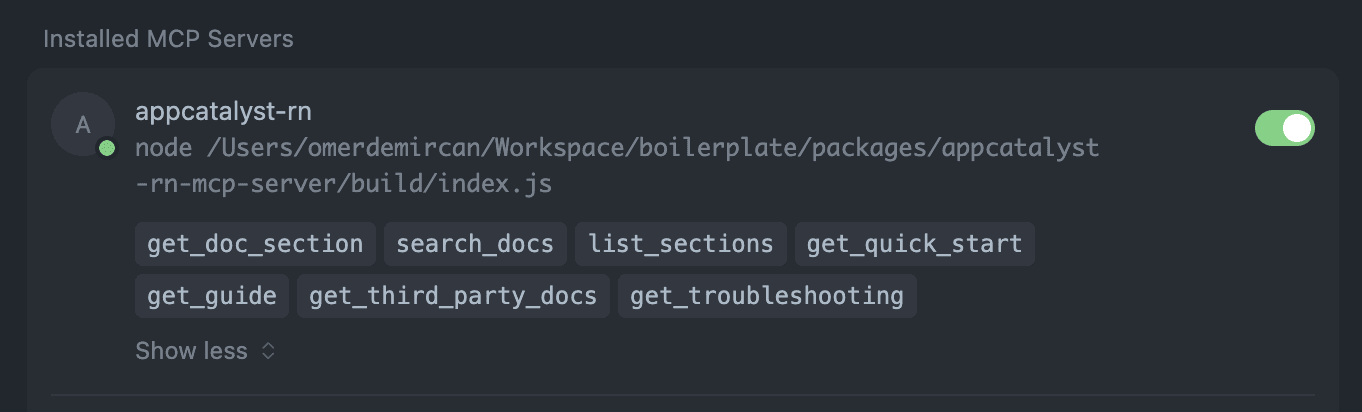
Option B: For Claude Desktop
1. Locate Configuration File
macOS:
~/Library/Application Support/Claude/claude_desktop_config.jsonWindows:
%APPDATA%\Claude\claude_desktop_config.json2. Edit Configuration
Open the file in a text editor and add the following, replacing the path with your absolute path from Step 4:
macOS:
{
  "mcpServers": {
    "appcatalyst-rn": {
      "command": "node",
      "args": [
        "{YOUR_ABSOLUTE_PATH_PREFIX}/appcatalyst-rn-mcp-server/build/index.js"
      ]
    }
  }
}
Windows:
{
  "mcpServers": {
    "appcatalyst-rn": {
      "command": "node",
      "args": [
        "{YOUR_ABSOLUTE_PATH_PREFIX}/appcatalyst-rn-mcp-server/build/index.js"
      ]
    }
  }
}
3. Save and Restart Claude Desktop
- Save the file
- Quit Claude Desktop completely
- Reopen Claude Desktop
✅ Verify It’s Working
Test 1: Simple Query
In your AI assistant, type:
List all App Catalyst RN documentation sectionsExpected Response: You should see a list of all documentation sections organized by category (Overview, Quick Start, Guides, etc.)
Test 2: Fetch Documentation
Try:
Show me the authentication guide from App Catalyst RNExpected Response: You should get the full authentication documentation.
Test 3: Search
Try:
Search App Catalyst docs for "Supabase configuration"Expected Response: You should get relevant excerpts from the documentation.
🎨 How to Use
Once configured, you can use these commands in your AI assistant:
Browse Documentation
- “List all available documentation sections”
- “Show me the quick start guide”
- “What guides are available?”
Get Specific Guides
- “Show me the authentication guide”
- “Get the theming documentation”
- “How does navigation work in App Catalyst RN?”
- “Show me the RevenueCat integration docs”
Search
- “Search for push notification setup”
- “Find information about state management”
- “Search docs for internationalization”
Troubleshooting
- “Help me troubleshoot styles not applying”
- “Show me common issues”
- “Get all troubleshooting documentation”
General Questions
Just ask naturally:
- “How do I add a new screen?”
- “What’s the project structure?”
- “How do I customize the theme?”
- “How do I set up payments?”
🔧 Troubleshooting
Issue: “MCP server not found” or “No tools available”
Solution:
- Verify the path in your config file is correct and absolute (not relative)
- Check that
build/index.jsexists in your MCP server folder - Make sure you completely quit and reopened your AI assistant
- Try running the server manually to test:
You should see: “App Catalyst RN MCP Server running on stdio”
node /full/path/to/appcatalyst-rn-mcp-server/build/index.js
Issue: “Cannot find module” errors
Solution:
- Navigate to the MCP server folder
- Run
npm installagain - Run
npm run buildagain - Restart your AI assistant
Issue: Permission denied (macOS/Linux)
Solution:
chmod +x build/index.jsIssue: Path with spaces not working
Solution: Make sure your path is properly quoted in the config file:
"args": ["/path/with spaces/appcatalyst-rn-mcp-server/build/index.js"]Issue: Windows - “command not found”
Solution:
- Ensure Node.js is in your PATH
- Try using the full path to node:
"command": "C:/Program Files/nodejs/node.exe"
Still Having Issues?
-
Check Node.js installation:
node --version npm --version -
Verify the build:
cd appcatalyst-rn-mcp-server ls build/index.js # macOS/Linux dir build\index.js # Windows -
Check config file location:
- Cursor:
~/.cursor/mcp.json(macOS/Linux) or%USERPROFILE%\.cursor\mcp.json(Windows) - Claude:
~/Library/Application Support/Claude/claude_desktop_config.json(macOS) or%APPDATA%\Claude\claude_desktop_config.json(Windows)
- Cursor:
-
Look for typos in JSON: Use a JSON validator like JSONLint
🔄 Updating the Server
If we release updates to the MCP server:
- Replace the files in your
appcatalyst-rn-mcp-serverfolder - Run:
npm install npm run build - Restart your AI assistant
💡 Tips & Best Practices
Get Better Answers
- Be specific: “Show me how to add custom fonts” vs “fonts”
- Reference the docs: “According to the App Catalyst docs, how do I…”
- Ask follow-ups: “Can you explain that setup step in more detail?”
Combine with Your Code
- “Based on the App Catalyst navigation docs, help me add a new screen to my app”
- “Using the authentication guide, implement social login in my app”
Keep It Updated
- The MCP server caches documentation for 1 hour
- Restart your AI assistant to clear the cache and get fresh docs
🎯 Quick Reference Card
Configuration Files:
- Cursor (macOS/Linux):
~/.cursor/mcp.json - Cursor (Windows):
%USERPROFILE%\.cursor\mcp.json - Claude (macOS):
~/Library/Application Support/Claude/claude_desktop_config.json - Claude (Windows):
%APPDATA%\Claude\claude_desktop_config.json
Common Commands:
# Install dependencies
npm install

# Build the server
npm run build

# Get your absolute path
pwd           # macOS/Linux
cd            # Windows

# Verify build exists
ls build/index.js      # macOS/Linux
dir build\index.js     # Windows
Test Queries:
- “List all App Catalyst RN documentation sections”
- “Show me the authentication guide”
- “Search docs for Supabase”
🎉 You’re All Set!
Once configured, your AI assistant will have instant access to all App Catalyst RN documentation. Happy coding! 🚀
Example conversation:
You: "How do I set up authentication in App Catalyst RN?"

AI: "Let me check the authentication guide for you..."
[Fetches and explains the authentication setup]

You: "Show me how to add social login"

AI: "Based on the authentication docs, here's how..."
[Provides step-by-step instructions]